
Having the right communication is an essential part of every successful and efficient process, since it assures the relevant stakeholders are being notified on time on new tasks via automated notifications, and that tasks are escalated to the relevant channels when needed.
There are 2 types of emails:
Notifications:
Notifications are automated emails sent to users based on various triggers.
For example, they can inform users about tasks they need to complete, thank them for their submissions, notify on new assignments, etc.Reminders
These emails are triggered when an idea or a task stays in a specific state for too long or gets to close or overdue its due date.
This article explains how to configure and manage these automated emails along to be sent along the process, but there is some flexibility:
- By default, the notifications will be triggered in all campaigns, but the campaign manager as the flexibility to disable specific notifications as explained here.
- When moving multiple ideas between states via the bulk actions, the e-mail notifications can be deactivated for this action,
- Once the emails are configured, they will be sent to the relevant users, unless the user defines that he doesn't want to get them.
In this article:
Configuring Automated Emails
The Sysadmin manages the emails on the subsystem level, and once defined, they apply to all campaigns that have that state enabled.
To manage the emails:
- Go to relevant subsystem/Feature Settings page > Workflow section.
- Click on the mail icon next to the relevant state to view or edit existing emails or create a new one.

Creating a New Email or Notification
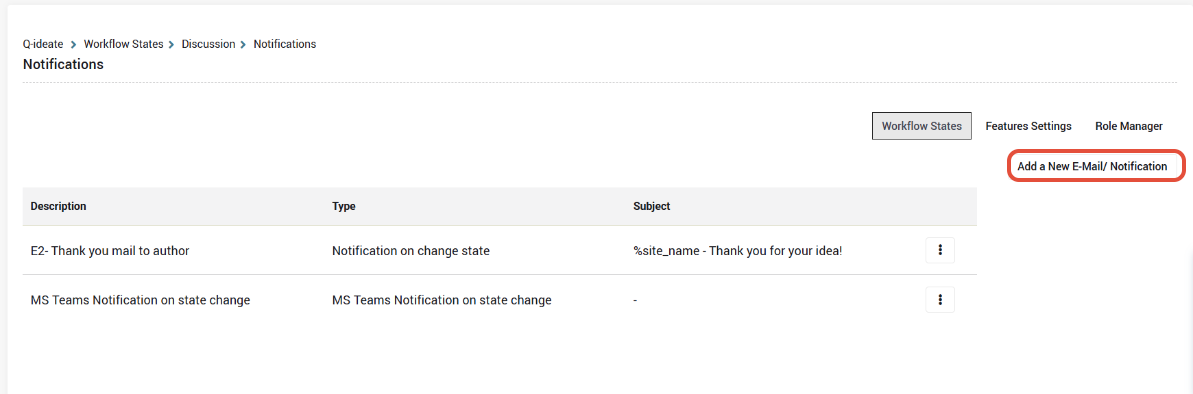
- Click "Add a New E-mail / Notification":
- Define a clear and descriptive name for the email notification to easily identify it when viewing the settings.
We recommend including the action and recipient (e.g., 'Approval Request - User') to ensure the notification is easily identifiable. This description is only visible to Sysadmins and not to end users.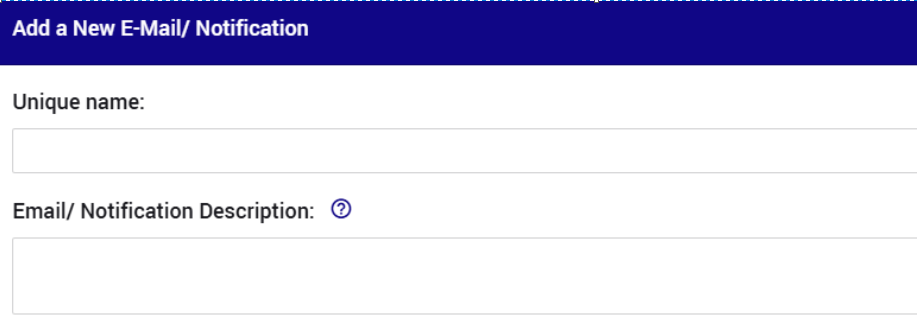
- Select the type of emailyou want to create:
- Notification on State Change: Sent when an idea moves to the current state.
- Notification on State Owner Change: Sent when an idea is re-assigned to a new user.
You will see option only if there are roles that are defined as "state owners" of the current state. - Reminder: Sent based on specific timing conditions (detailed below).
- MS Teams Notification on State Change: Sends a notification via Microsoft Teams when an idea changes state.
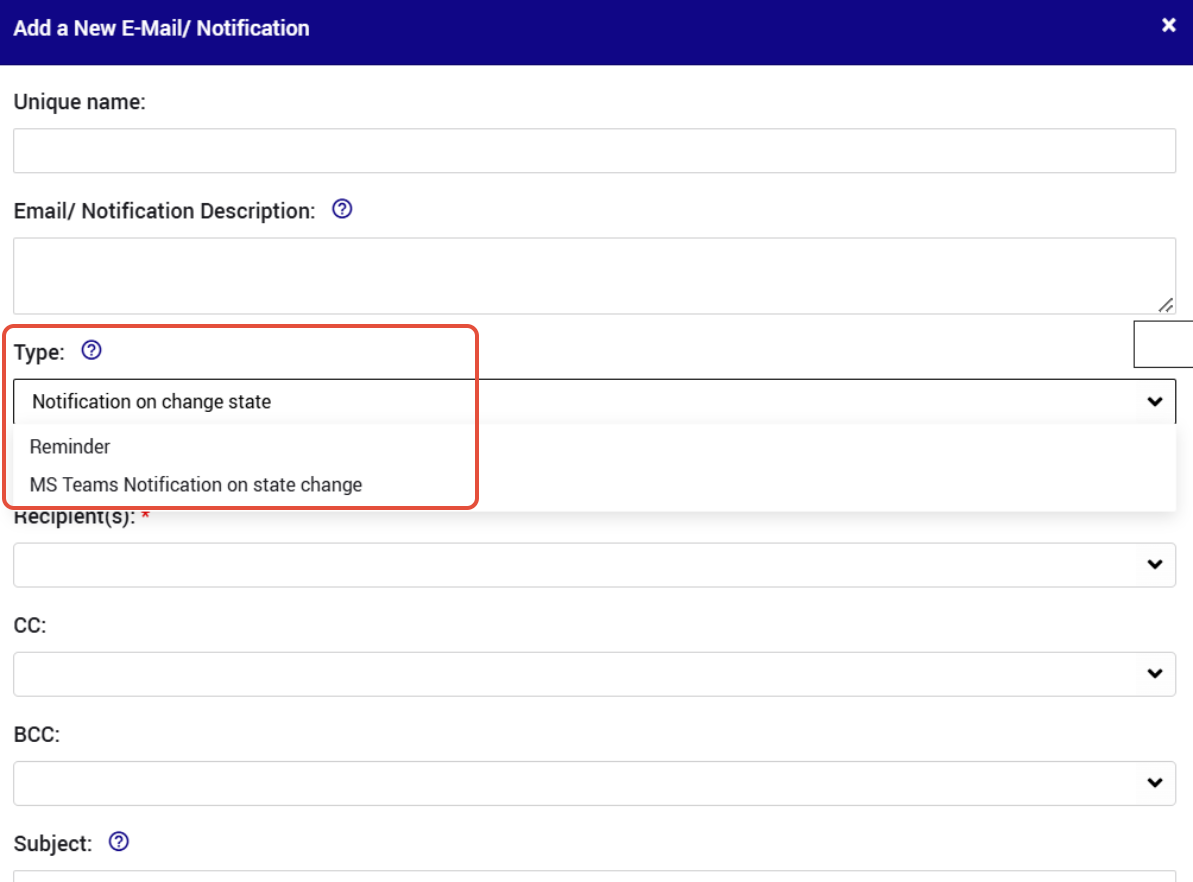
- There is an option to not email the user who performs the action that triggers the notification.

- If you choose to configure a Reminder, you can configure the following triggers:
Reminder After X Days:
This email will be sent when an idea remains in the current state for X days.You can choose the number of days.
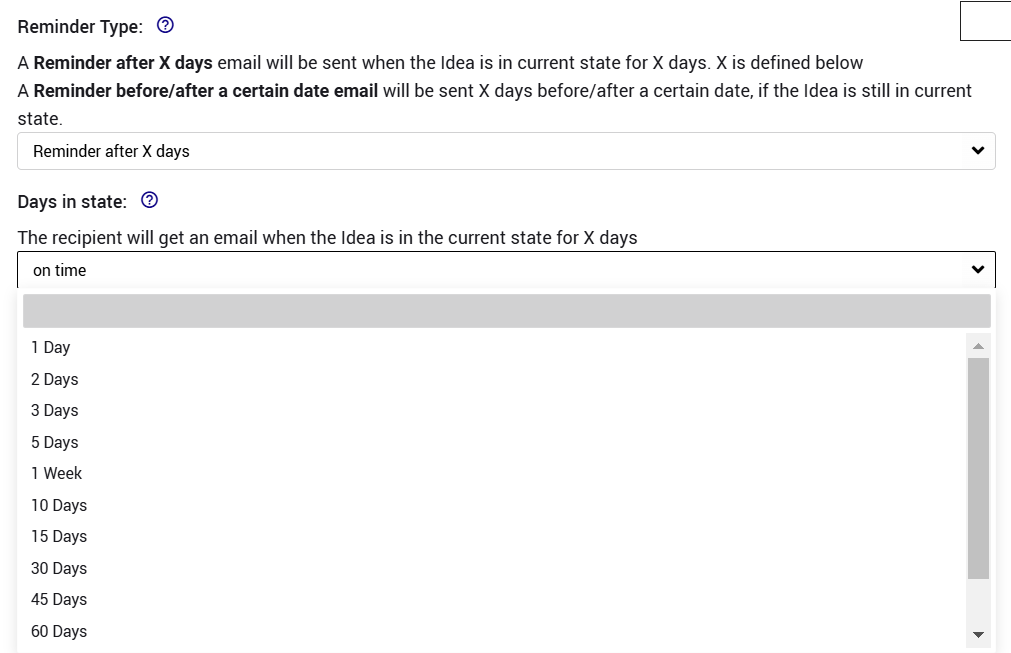
Reminder Before/After a Specific Date:
This email will be sent X days before or after a specific date (You can choose a date field that was created in the workflow).
For example: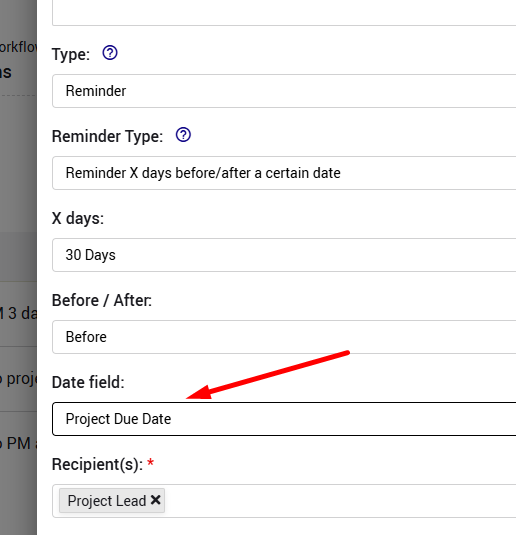 If there is no date fields, this option will not be available.
- Define the Recipients:
You can define the recipients to be:- In case you are configuring a notification from within a subsystem setting --> Any role of the current subsystem, AND in case your are using the interconnectivity, the submitter of connected entities (i.e. from other subsystems)
- In case you are configuring a notification from withing a feature setting --> Any role of the current feature + roles of the subsystem the feature is associated with
- Define a specific mail address (for example a mailing list).
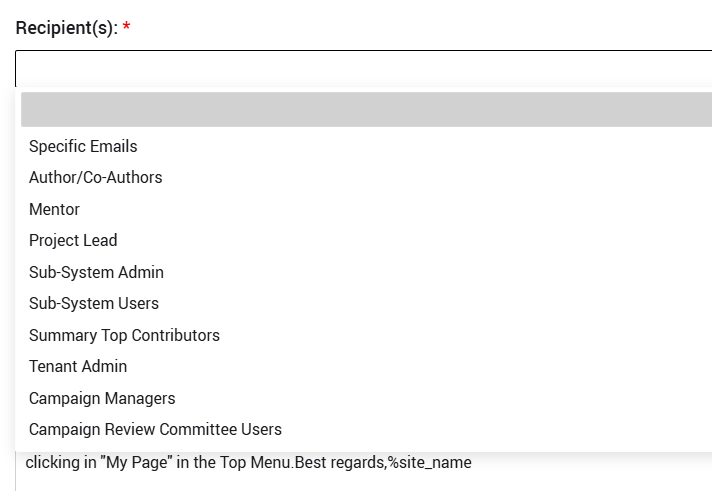
If the specific emails option is selected, you will be able to insert the relevant email addresses.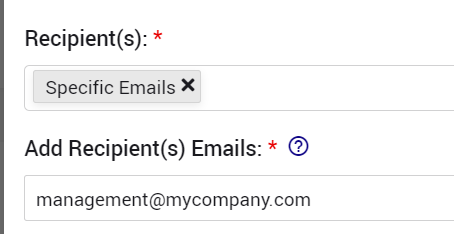
In addition, you can specify additional CC or BCC as needed.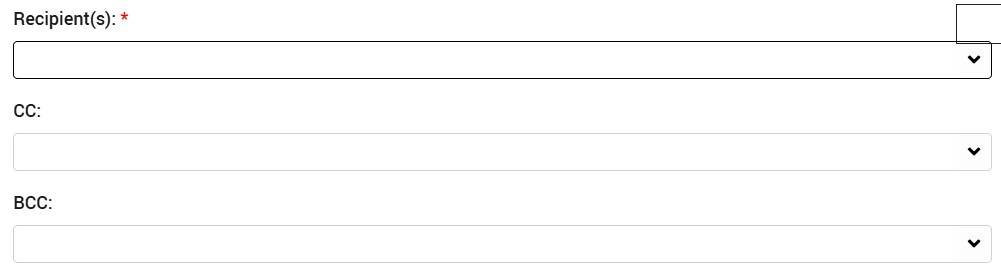 Please note: If there are CC or BCC recipients, they are not recorded in the mail log—only the main recipient is recorded.
- Subject and Body:
Write the subject line and body content for the email.
We suggest including a clear description of the email's purpose, providing any relevant information, and list expected action items, a personalized signature, etc.
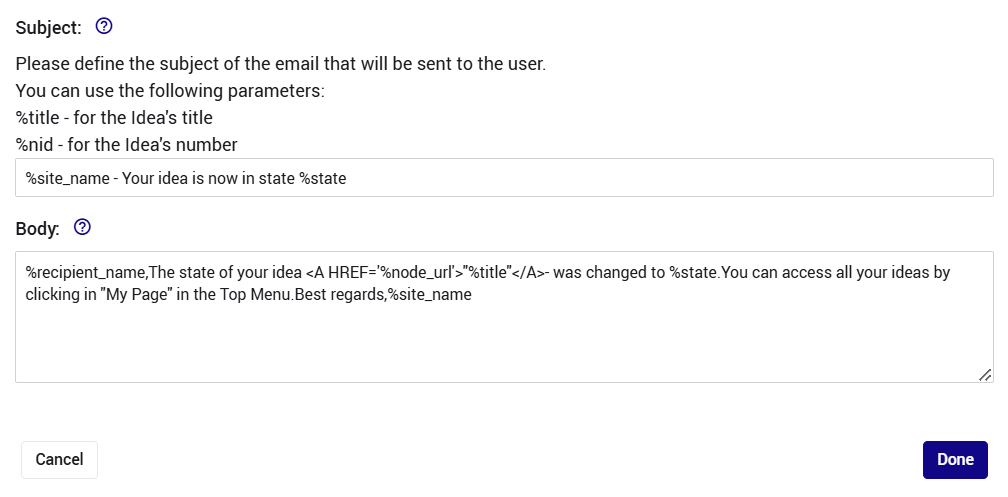
Useful variables you can use:
%title - for the Idea's title
%nid - for the Idea's number
%node_url - for the Idea's link
(if you would like refer to the parent idea when sending a notification tha trefers to a task/expert review or any other feature, use this syntax:
%parent_title - for the Idea's title
%parent_nid - for the Idea's number
%parent_node_url - for the Idea's link
%recipient_name - for the the full names of the email's recipients.
**If more than one, will be separated by comma
%author_name - for the author's name
%author - for the author's mail
%cck_field_auto_co_author_name - for the co-authors' name
%acting_user_name - the full name of the user that performed the action in case of state change.
%acting_user_email - the email of the user that performed the action in case of state change.
%cck_field_auto_description - the idea's description
%site_name – The site name is defined in the system setting page
%group – The campaign name
%group_url – The campaign url
Note:
%title and %parent_title display only the title.
If you would like to include the parent idea name as part of the displayed text, you can update the syntax as follows:
<a href="%parent_node_url">"%parent_title(#%parent_nid)"</a>
<a href="%node_url">"%title(#%nid)"</a>
This is the syntax to use to include a link to any external link:
This is a <a href="https://biteable.com/watch/4414126/5e8720627792870620a73b976f9278d0 ">link</a> to a video
*The link itself
**The string that will be clickable
Please note emails can be translated into multiple languages. Please visit Email translations if your system supports multiple languages.
Important note:
Existing emails' translations will be reset once the original title/body is modified.