
Overview
In some workflow configurations, users may need to assign a specific role while an idea is in a certain state.
If the option to assign a role does not appear, this behavior is related to how the workflow transitions are configured.
Reason:
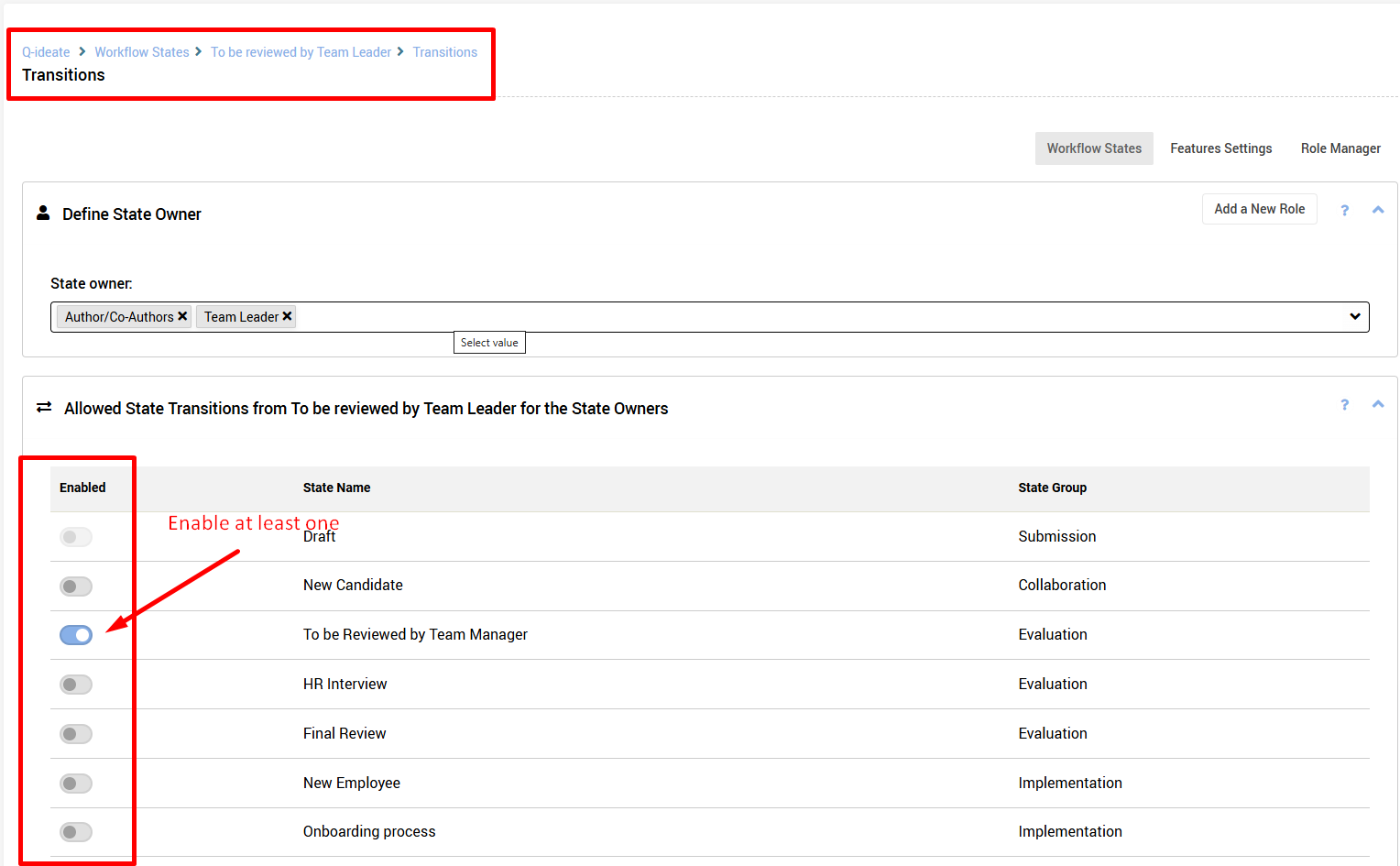
The ability to assign users to roles within a state is only available when the state has at least one outgoing transition defined in the workflow.
If the state does not include any transition to another state, the option to assign a role will not be displayed to the user.
The form is expected to display the option to assign a role through “User Direct Selection”, however this option is not available.
To enable the option to assign roles in a given workflow state:
Navigate to Self Admin → Workflow.
Select the relevant state.
Ensure that the state has at least one outgoing transition configured.
Save the workflow.
Once the transition exists, the role assignment option will become available for users in that state.
Alternative Option
If transitions are intentionally restricted and users should not move the idea to other states, the role can still be assigned manually by:
Opening the idea.
Clicking “Edit / Reassign”.
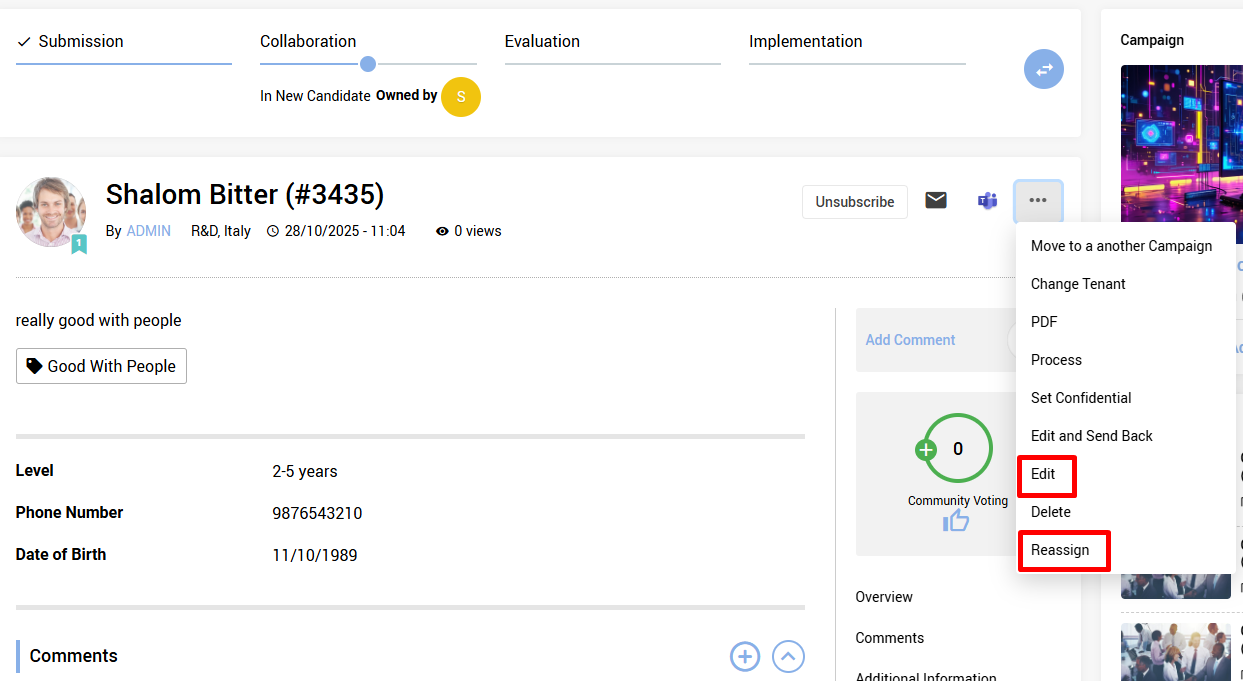
Scroll Until you find the role and the option to select a user for it.
Don't forget to submit
Notify: Only users who are authorized according to the workflow settings or designated moderators -can "Edit / Reassign".